
How to Track a Missouri Court Case on Case.net and Get Email or Text Alerts
Want to know when something changes in your Missouri court case without checking Case.net every day?
The Track This Case feature lets you receive email alerts when a new docket entry is added or updated. You can also sign up for text messages and reminders about upcoming court events or payments.
Disclaimer: MoCaseLookup.com is an independent informational website and is not affiliated with the Missouri Judiciary or Missouri Courts. Track This Case notifications are not official court notices.
Quick Answer 🔔
To track a Missouri court case, visit courts.mo.gov/casenet, find your case, and click Track This Case under the Case Header tab. Enter your email address, select any optional notifications, and submit the form. If you’re not logged in, confirm the verification email to activate tracking.
At a glance:
- Email alerts: New or updated docket entries
- Text alerts: Optional messages sent to your phone
- Reminders: Scheduled court events and payments
- Account: No login required for public users
How to Track a Missouri Court Case on Case.net
Here’s how to set it up.
Step 1: Open Your Case on Missouri Case.net
Go to the official Missouri Case.net website.
You first need to find the case you want to track.
If you have the case number, select Case Number Search, enter the full number from your court papers, and click “Find”.
Don’t know the number? Use Litigant Name Search to find the case by the person’s name.
We have separate guides for Missouri Case Number Search and Litigant Name Search if you need help with either option.
Once you find the correct record, click its case number to open the details.
You should now see the Case Header tab along with other sections, including Docket Entries and Scheduled Hearings & Trials.
Step 2: Click “Track This Case” Under the Case Header Tab
Look for the Track This Case icon on the Case Header tab and click it.
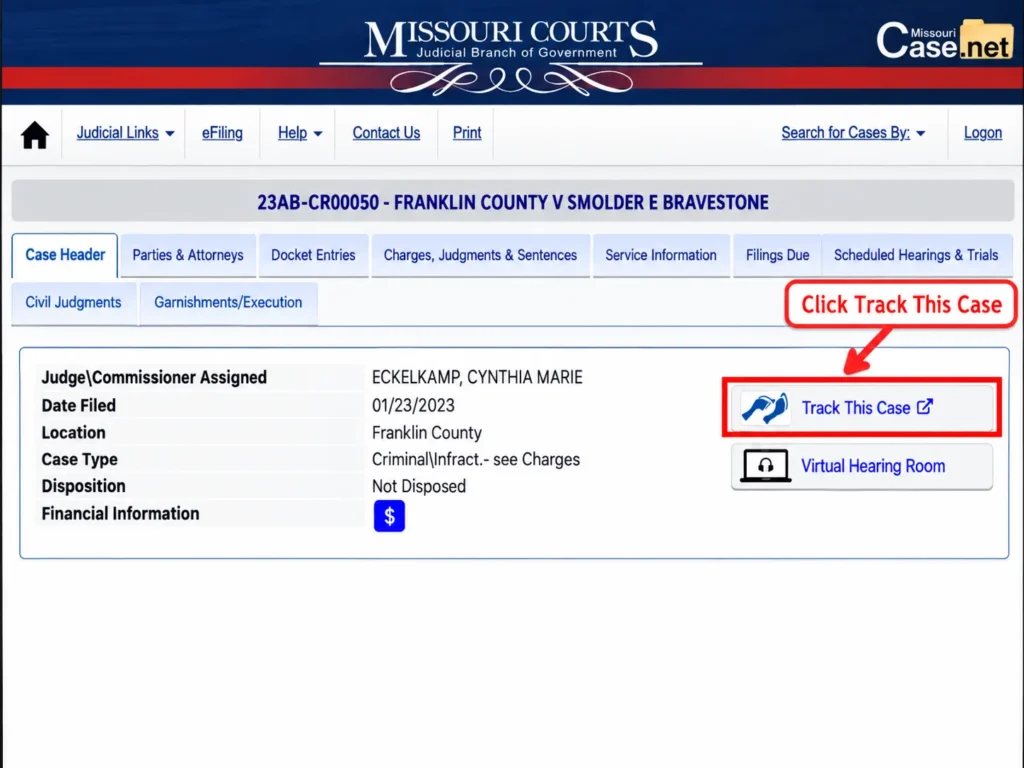
A new page will open where you can enter your contact information and choose which notices to receive.
The Docket Entries tab shows activity already recorded in your case. Track This Case is for receiving updates when that activity changes.
If you’re having trouble understanding the other case tabs, our Missouri CaseNet lookup guide explains what each section contains.
Step 3: Enter Your Email Address and Choose Notifications
The information you need to enter depends on whether you’re logged in.
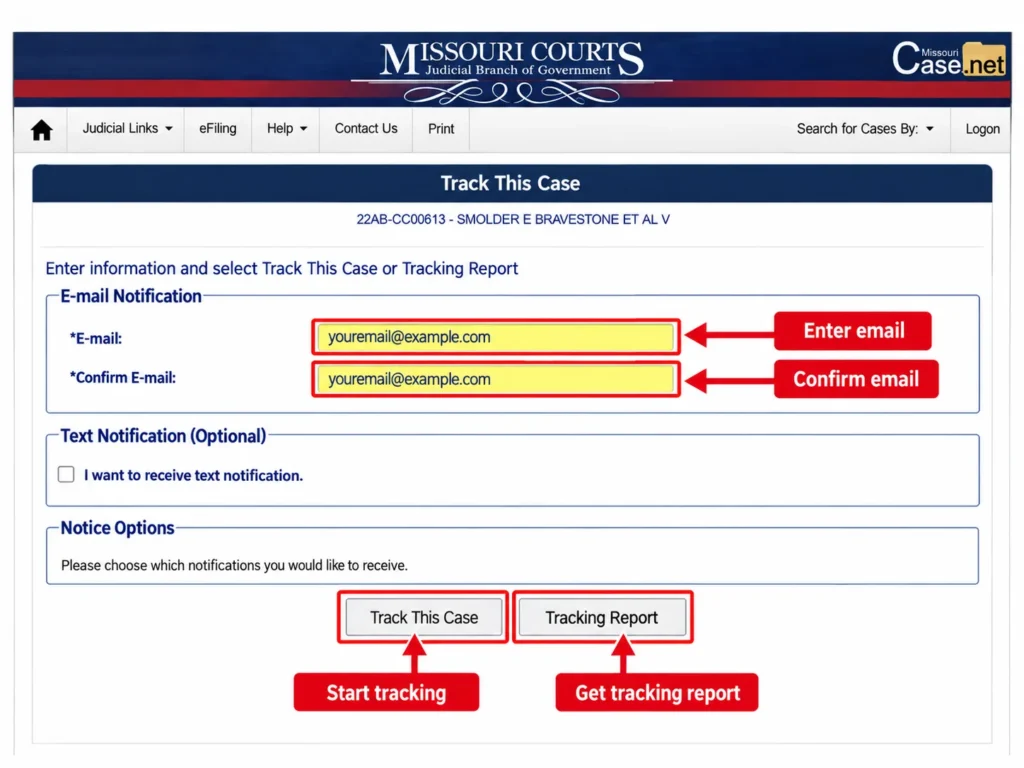
Option 1: Track This Case as a Public User (Not Logged In)
You can register for case tracking without signing into Case.net.
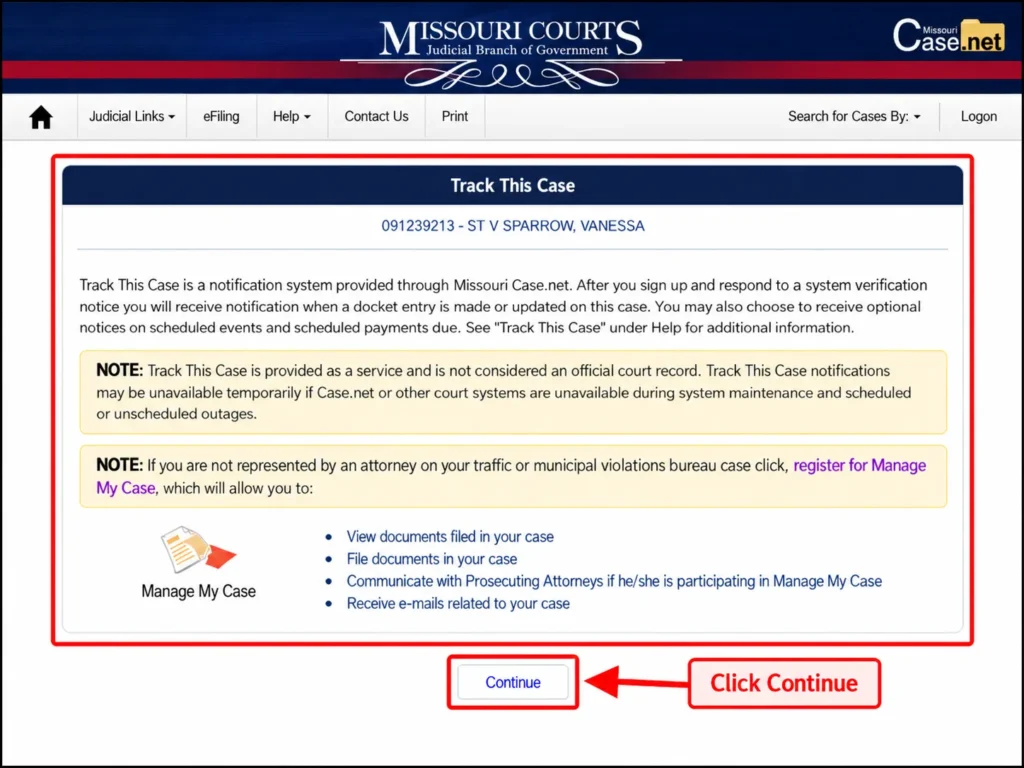
Enter the following details:
- E-mail: Your valid email address.
- Confirm e-mail: Enter the same address again.
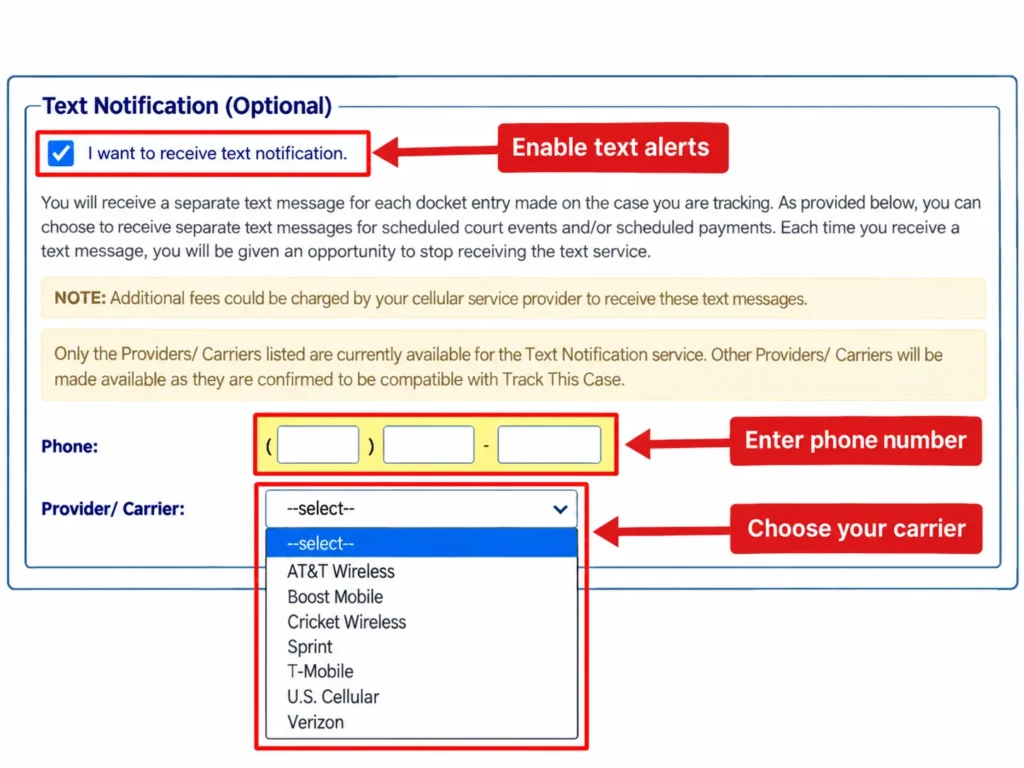
- Text notifications (optional): Provide your cell phone number and select a provider/carrier from the available list.
Email is required. A phone number is only needed if you want text alerts.
Only the carriers listed on the page are supported for text notifications. If yours isn’t available, use email tracking instead.
Option 2: Track This Case as a Logged-In User
If you’re already logged in as a public or registered user, the tracking page works a little differently.
Your account email must be valid. Complete the required fields, select your notice options, and submit the request.
Once accepted, Case.net displays: “You are now tracking this case.”
If you also requested text alerts, you still need to confirm the verification message sent to your phone.
Step 4: Choose Court Event and Payment Due Reminders (Optional)
Case.net also offers notices for scheduled court events and payments.
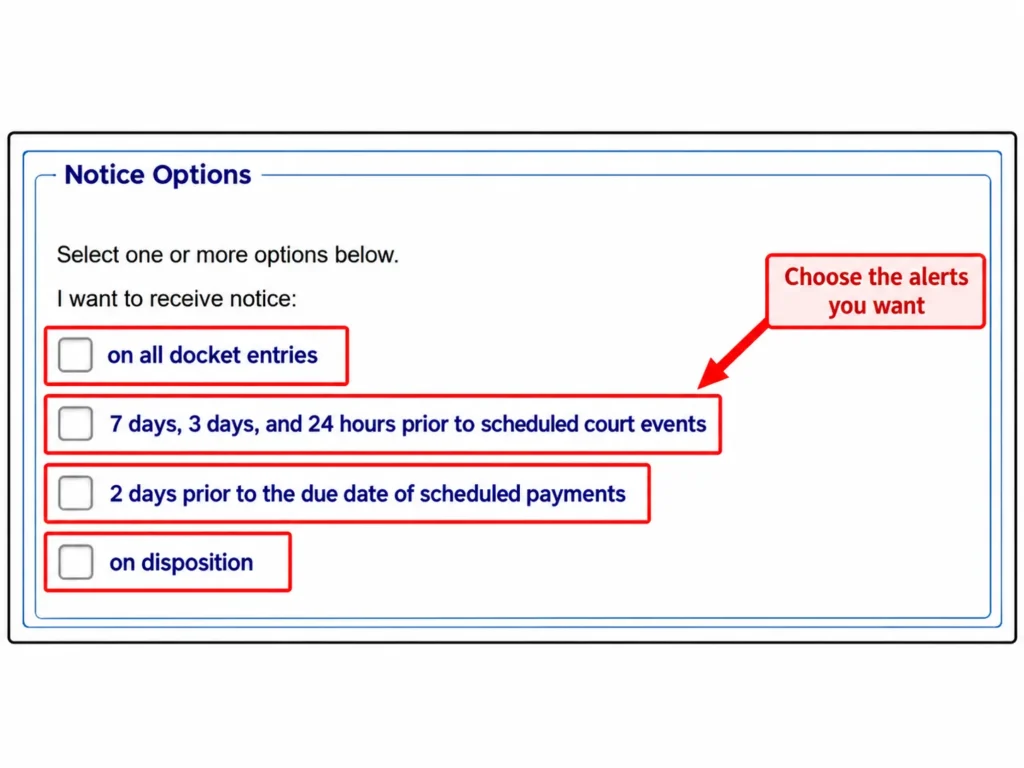
You can choose reminders for:
- Scheduled court events: Alerts before an upcoming court event.
- Scheduled payments: Notices before a payment due date.
These reminders are separate from regular docket notifications.
For example, if a hearing is scheduled, an event alert can show the case number, date, and time. A payment reminder may include the payment plan number and amount due.
Select only the options you need. Check the available reminder periods shown on the official tracking page before submitting your request.
Step 5: Submit and Verify Your Tracking Request
Enter the CAPTCHA characters displayed on the page and click Track This Case.
What happens next depends on your login status.
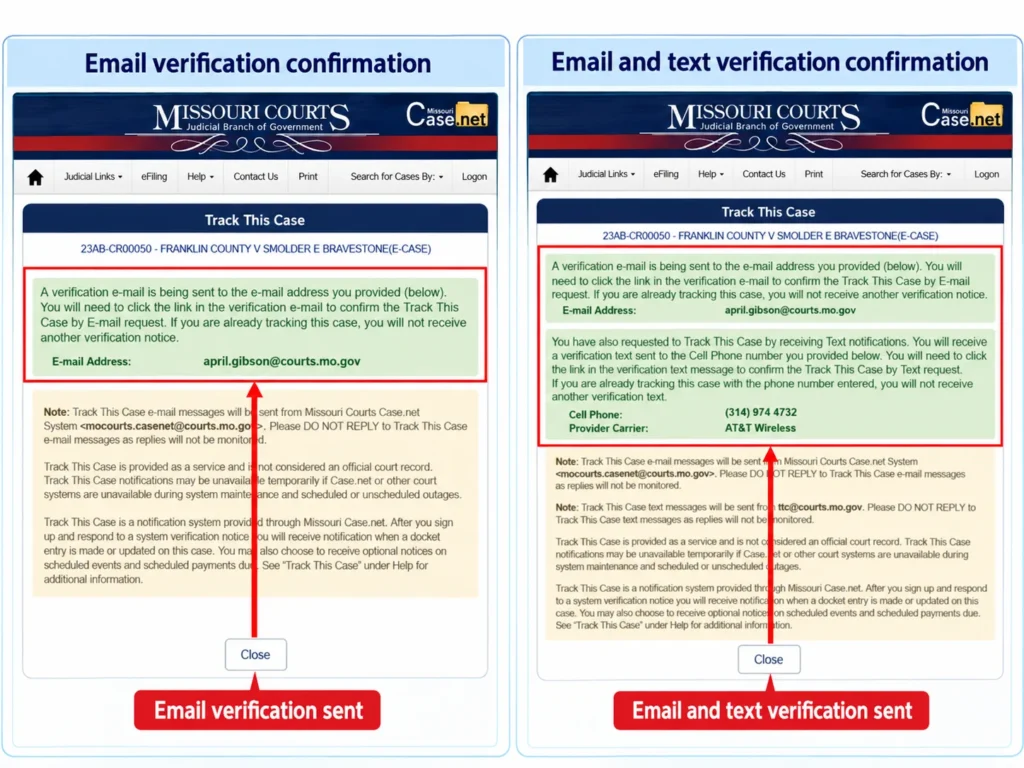
Verify Your Email Address
If you’re not logged in, Case.net sends a verification email to the address you provided.
Open the message and click the confirmation link to verify your Track This Case by E-mail request.
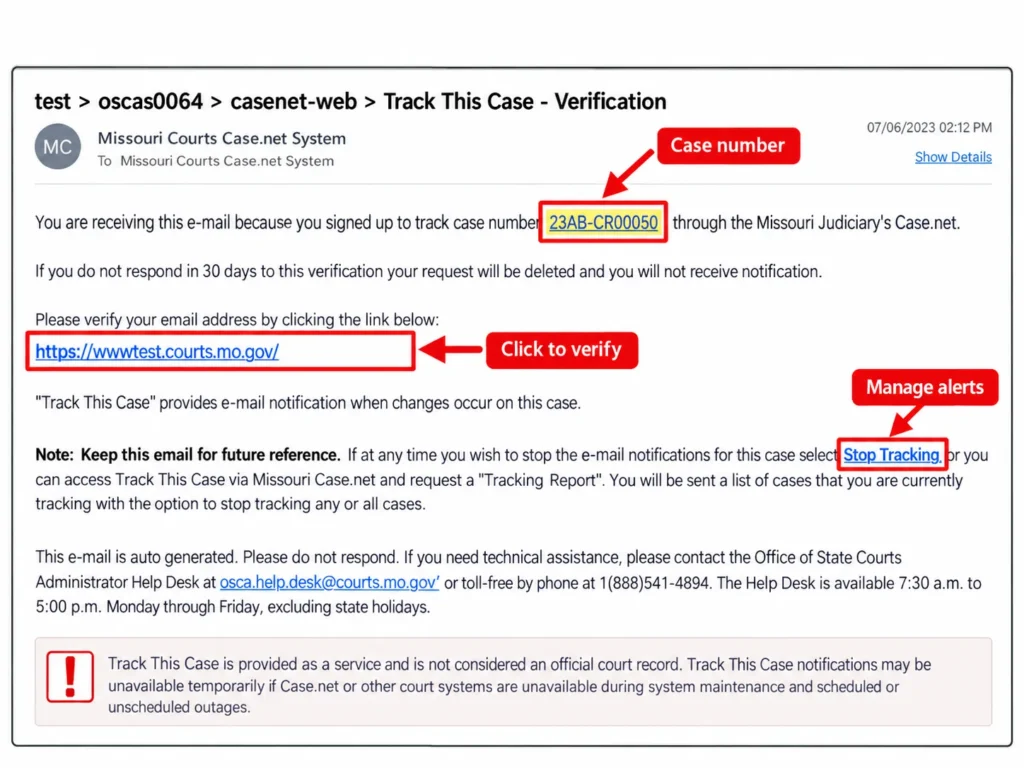
Check your spam folder if the message doesn’t appear in your inbox.
Verify Text Notifications (Email Verification Required First)
If you requested text alerts, a separate verification message will be sent to your cell phone.
Follow the link in that message to confirm your Track This Case by Text request.
Your email request must be verified before text tracking can be activated.
Once confirmed, the system can send the case notifications you selected.
What Notifications Will You Receive from Missouri Case.net?
The type of alert depends on the activity recorded in your case and the notice options you selected.
Docket Entries and Case Dispositions
A docket entry is a record of activity in a court case, such as a filing or court order.
Track This Case notifies you when a docket entry is added or updated. It also supports notices about case dispositions.
Rather than sending an email for every change, Case.net collects the day’s docket activity and sends one notification email that evening.
Text alerts work differently. If enabled, each docket entry can generate a separate text message.
Scheduled Court Events and Payment Due Reminders
If you selected optional reminders, the system can notify you about upcoming court events and scheduled payments.
Court event alerts can show the scheduled date and time.
Payment due text messages may include:
- Case number and person’s name
- Payment date
- Payment plan number
- Amount due
- Past-due amount, if any
These details help identify which event or payment the message concerns.
What Information Is Included in Email and Text Alerts?
A tracking email provides details about the latest case activity, including the filing date and time, docket description, and last activity date.
It also contains links for managing your tracking request.
A text message usually includes the case number, the docket entry, and a link to Case.net.
The information may differ for court event and payment reminders.
Important: These alerts are provided for convenience. They do not replace official court notices or instructions from the court.
How to Get Your Case.net Tracking Report
If you’re tracking several cases, you can request a Tracking Report to see them together.
Open the Track This Case page and:
- Enter your email address.
- Complete the CAPTCHA if required.
- Click Tracking Report.
Case.net will send an email listing your tracked and verified cases.
Case numbers appear in ascending order. The report also provides options for stopping tracking.
Only verified cases appear in this report. If you recently signed up but haven’t confirmed the verification email, complete that step first.
How to Stop Tracking a Case on Missouri Case.net
You can stop email alerts, text messages, or tracking for all cases through the links provided in your tracking emails or report.
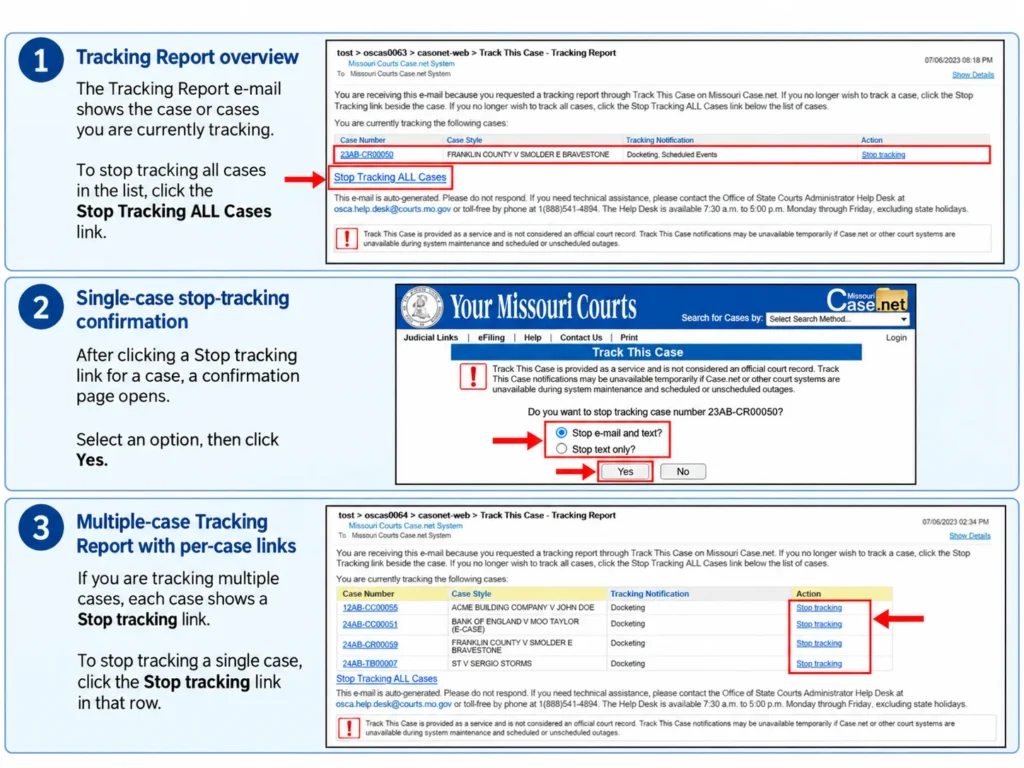
Stop Email and Text Notifications for One Case
Open a tracking email or Tracking Report and find the case you want to remove.
Click Stop Tracking.
When the confirmation page opens, choose “Stop e-mail and text?” and select “YES”.
You should see the message: “You are no longer tracking this case.”
Stop Text Notifications Only
Want to keep email alerts but stop receiving texts?
Select Stop text only? when managing your tracking request, then confirm.
Case.net will display: “You are no longer tracking this case by text.”
This stops text notifications without cancelling your email tracking.
Stop Tracking All Cases
To cancel tracking for every case linked to your verified requests, open the Tracking Report and select Stop Tracking ALL Cases.
Choose “Stop e-mail and text?” to stop both services, or “Stop text only?” if you only want to turn off text notifications.
Click “YES” to confirm.
The system will display a confirmation that tracking has stopped for the selected notification type.
Why Are Case.net Tracking Notifications Not Working?
If your tracking request isn’t going through, check the error displayed on the page. It usually points to the field that needs attention.
Invalid Email Address, Phone Number, Carrier, or CAPTCHA
Case.net can reject a request when:
- The email address is missing or invalid.
- The email confirmation doesn’t match.
- The phone number or carrier information is incomplete.
- The CAPTCHA characters are incorrect.
- Verification hasn’t been completed.
Correct the information and submit the form again.
If you’re logged in and your account email is invalid, registered users can correct it through My Account. Some logged-in public users may need help from the OSCA Help Desk.
Confidential Cases, System Maintenance, and Outages
Notifications may stop if the case becomes confidential.
Case.net or other court systems can also be temporarily unavailable during maintenance or unexpected outages.
If the website itself isn’t opening, see our guide on why Missouri Case.net may not be working.
One more thing: If you’re already tracking a case, submitting the same email address or phone number again won’t generate another verification message.
Missouri Case.net Track This Case FAQs
Is Track This Case an Official Court Notice?
No. Track This Case is a notification service, not an official court notice. You are still responsible for following court instructions and attending scheduled hearings, even if an alert doesn’t arrive.
Can I Track Multiple Cases on Missouri Case.net?
Yes. Open each case and sign up for tracking. You can request a Tracking Report to see the cases linked to your verified tracking requests.
Why Am I Not Receiving Another Verification Email or Text?
Case.net doesn’t send a second verification email when you’re already tracking the same case with that address. It also won’t send another verification text if the phone number is already registered for that case.
How Often Does Case.net Send Tracking Emails and Text Messages?
Case.net collects docket changes during the day and sends one email that evening. If text notifications are enabled, each docket entry can trigger a separate message. Scheduled event and payment reminders follow the selected notice options.
Are Case.net Text Notifications Free?
You can sign up for Track This Case reminders without a separate court registration fee. However, your cellular provider may charge for receiving text messages, depending on your phone plan.
What Should I Do If My Account Email Address Is Invalid?
If you’re a registered user, log in and update the address in My Account. If the system tells you to contact the OSCA Help Desk, use the official support details below.
How Can I Contact the OSCA Help Desk?
For technical problems with Case.net or Track This Case, contact the Office of State Courts Administrator (OSCA) Help Desk.
- Phone: (888) 541-4894
- Email: OSCA.HELP.DESK@courts.mo.gov
Explain the issue and include the error message you’re seeing. For questions about your court case itself, contact the Circuit Clerk’s Office handling the case.
Conclusion
To receive Missouri court case updates, open your record on Case.net, select Track This Case, and complete the required verification.
Email alerts cover docket activity, while optional text messages and reminders can help you follow scheduled events and payments.
Use your Tracking Report if you need to manage or stop notifications. For court dates and official case information, always check Missouri Case.net directly.